Cherish your time.

ShotList2 icon

shotlist 2 Thumbnail shot lists in Excel — automatically. +HDR/ACES-ready multi-function player ShotPlayer

Windows macOS

HOW IT WORKS shotlist flow

A folder full of video clips

Lots of footage

Building a shot list with pictures in Excel by hand takes forever…

With shotlist it's easy

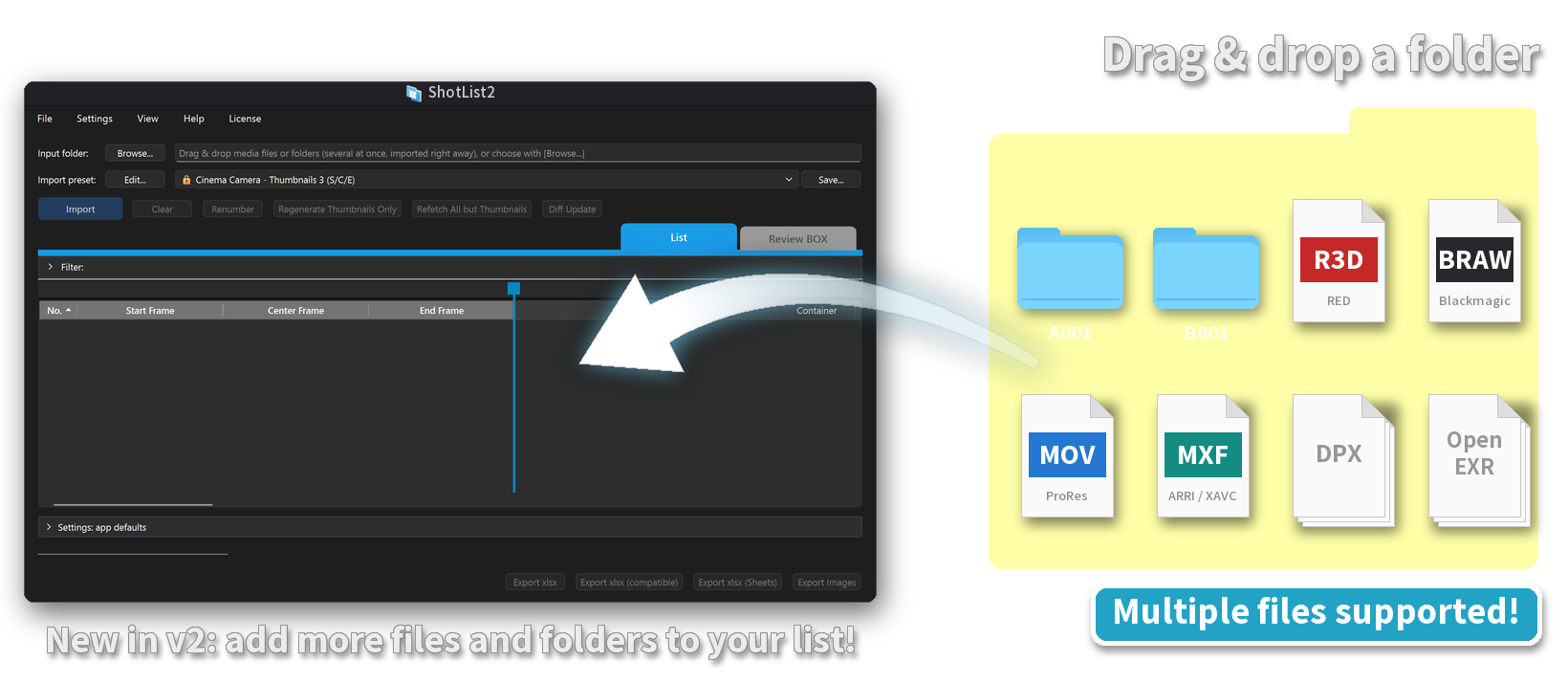
Just drag & drop the folder
with your footage!

Dragging a folder of footage onto the ShotList2 window; multiple files supported. New in v2: add more files and folders to your list

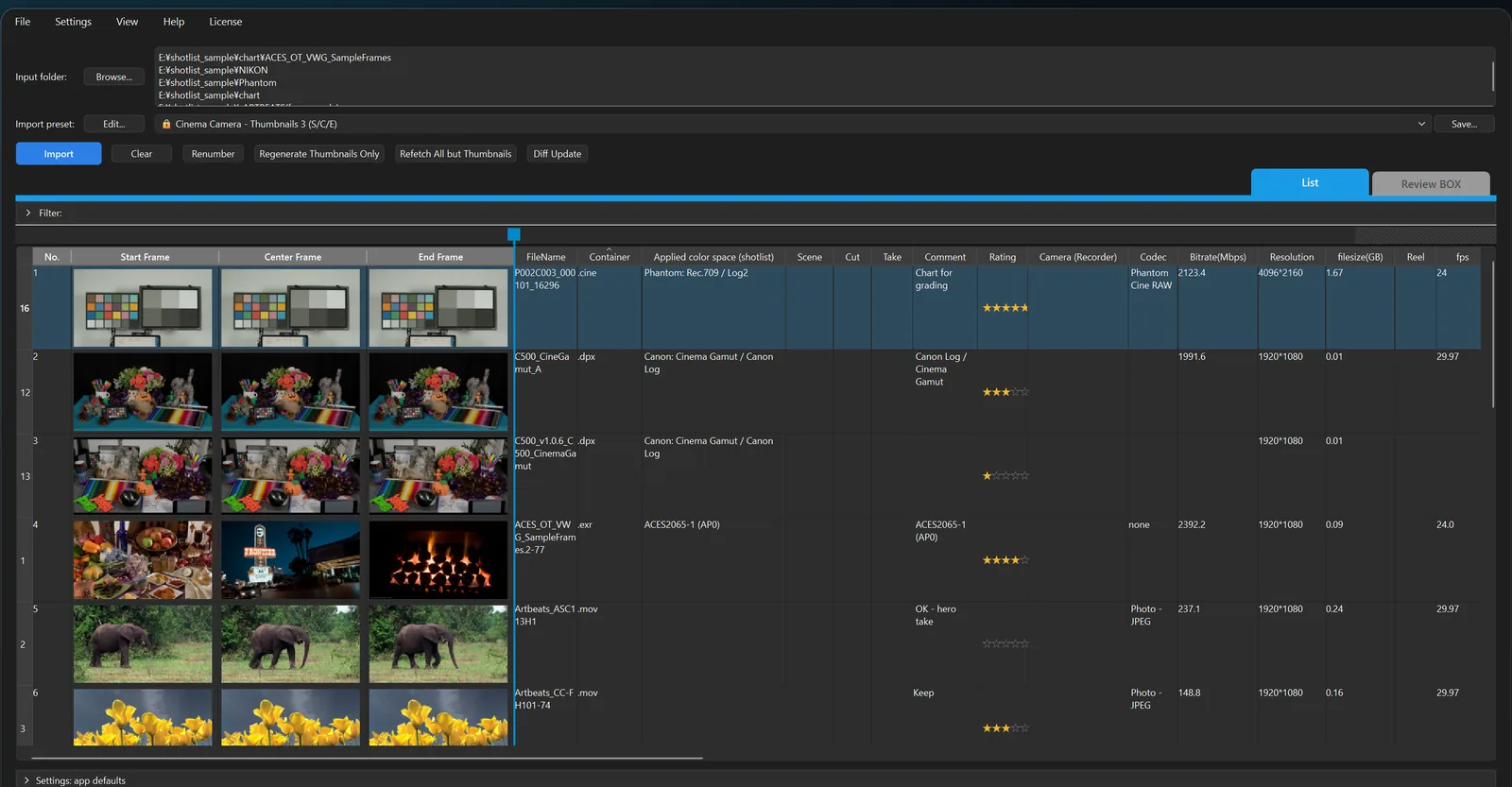
A thumbnail shot list is built for you

Resolution, codec, bit depth, frame rate, timecode, camera, lens, ISO and more are read at the same time.

The ShotList2 list view: a thumbnail shot list built automatically

From everyday .mov .mxf .mp4 files to camera RAW from RED, ARRI, Blackmagic and ProRes RAW,
and the [DPX] [EXR] [TIFF] image sequences used in post, VFX and CG.

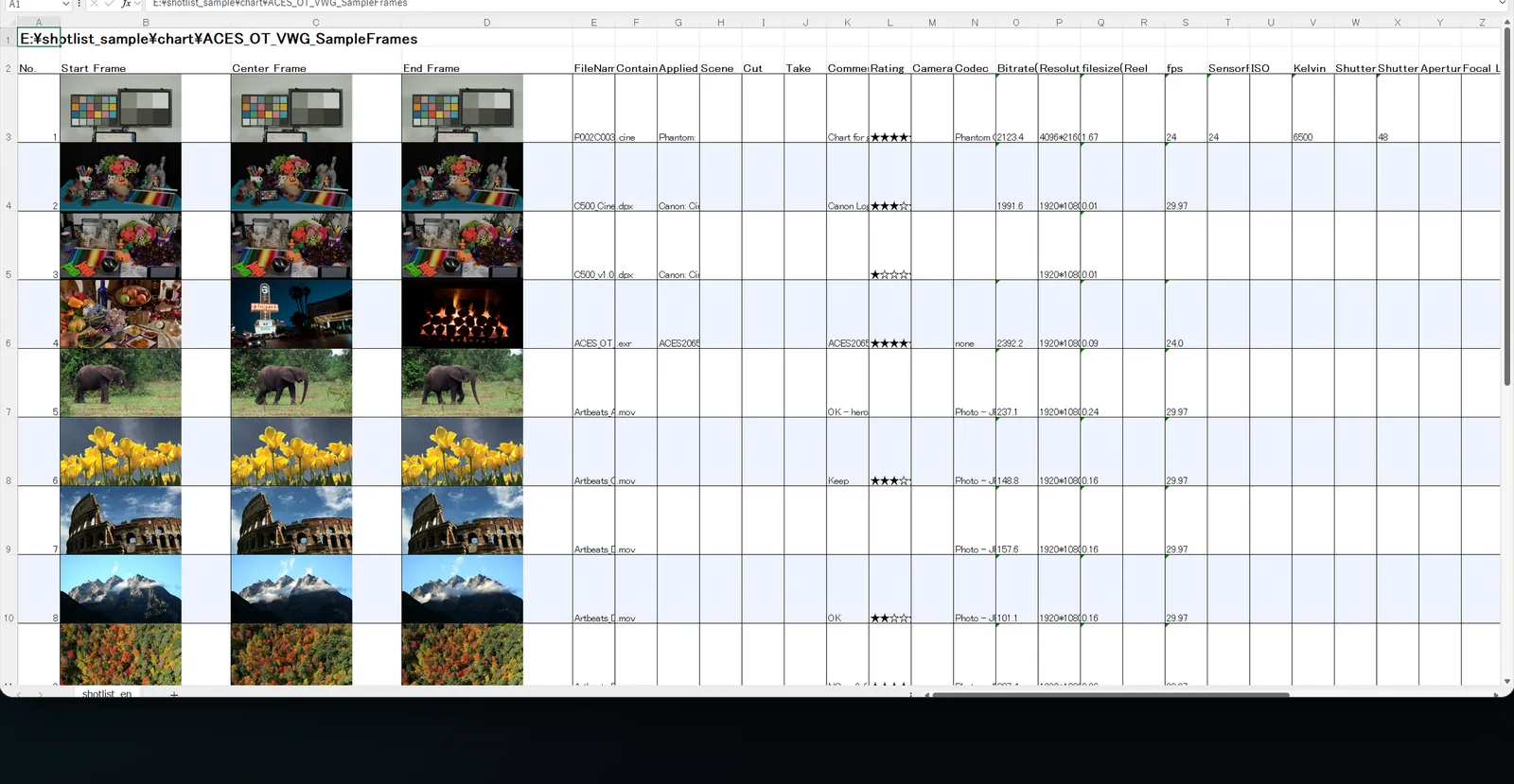
Export the list to Excel (xlsx)

Your thumbnail shot list is done in moments.

A thumbnail shot list exported to Excel
Opens in Excel, Google Sheets and Office 365

Four ways to export

Sheets

For Google Sheets

Images in cells

Upload to Google Drive and open in Sheets — the images sit inside the cells.

Excel

Images in cells

Images are placed inside cells. For viewing in Microsoft 365 Excel.

Compatible format

For older Excel

Images float over the cells, so older versions of Excel and other viewers can open the file.

Images only

"Export Images" button

Export just the thumbnails as "No._filename.jpg" into a timestamped folder.

Large workbooks are split automatically at the size you choose (90MB by default), so they open in Excel for the web and Google Sheets.

shotlist

Excel file

Google Drive / Office 365

Share with your team
+

The wait is over!
ShotList2 runs on both Windows and Mac!

Mac on set, Windows in post. Same features, same workflow, same shot lists on both.

REVIEW AND RATE YOUR CLIPS Review BOX & Review player

Review all your imported clips at a glance — play, star-rate and edit comments on the spot.
What you decide flows straight into the clip list and the Excel export.

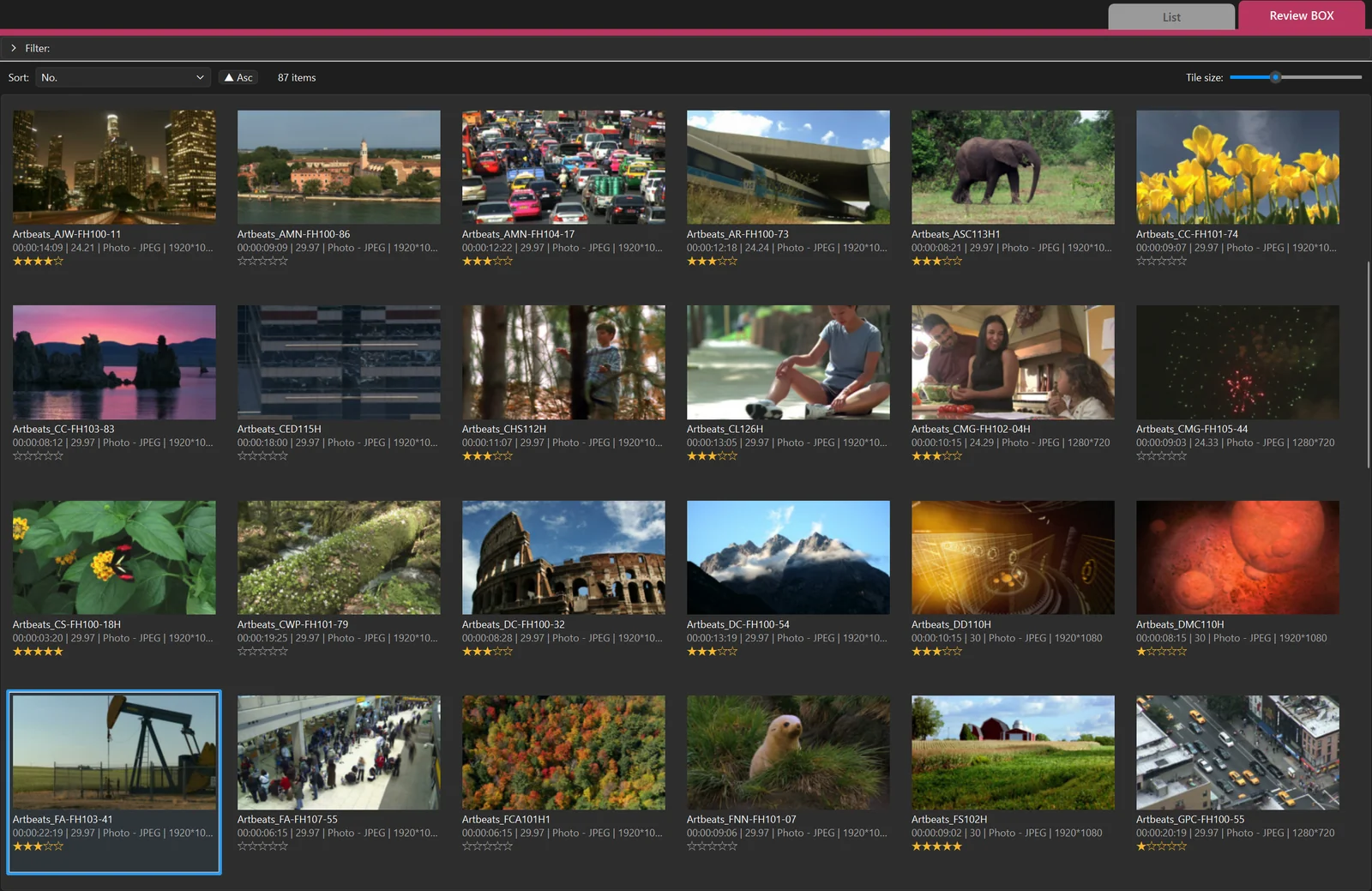
Review BOX

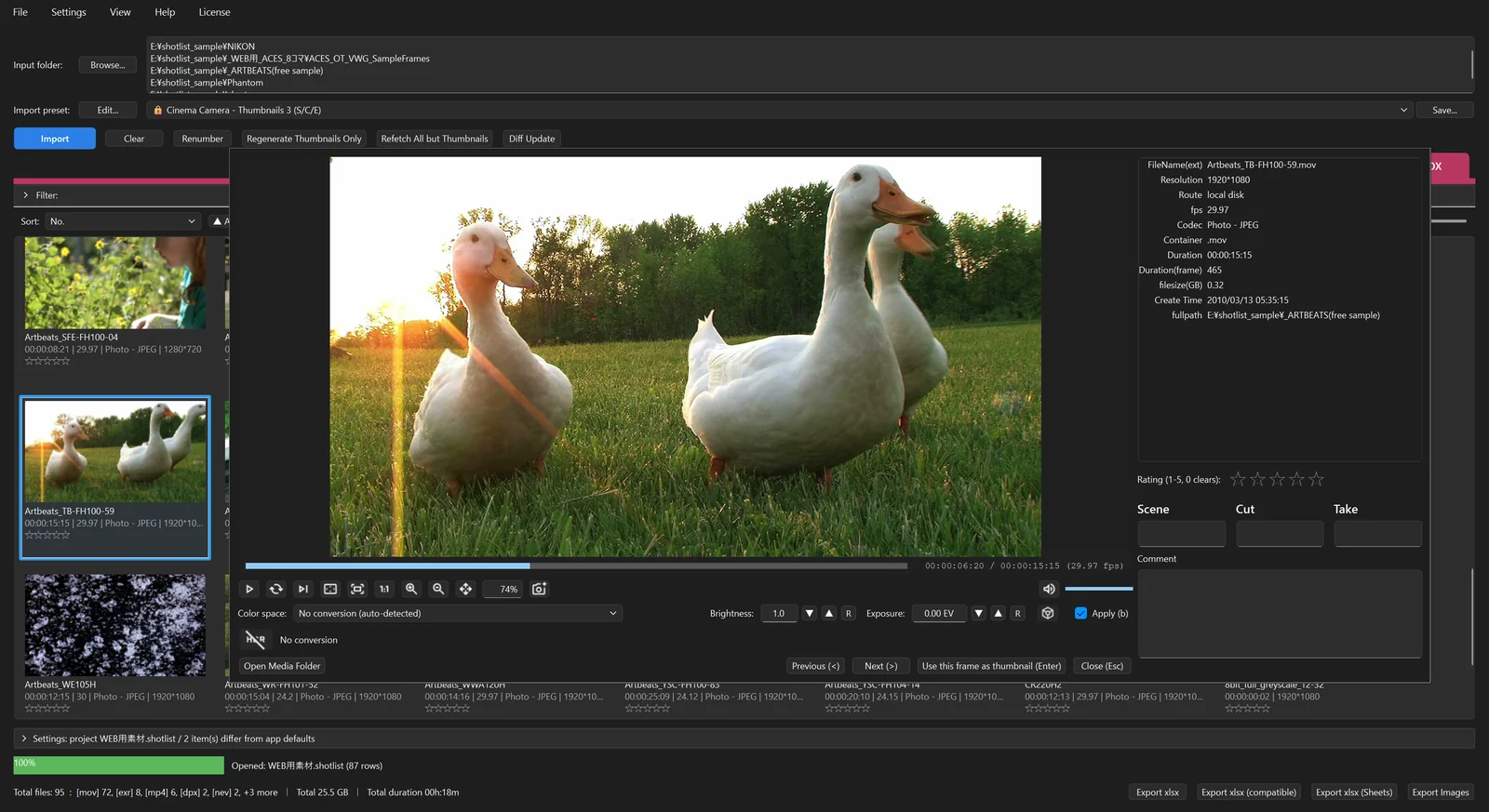
Review BOX tiles with star ratings, sorting and tile size
A tile selected in the Review BOX and opened in the Review player
Select a tile and press Space to open it right there in the Review player
  • Easy-to-scan tile viewSee imported clips as thumbnail tiles. Press Tab to switch between the list and the Review BOX, keeping your selection. Resize the tiles as you like.
  • Scrub frames by hoveringJust move the mouse left and right over a tile to step through the frames in the clip — know what's inside without playing it.
  • Star ratingsPress 1–5 to add stars and 0 to clear them. Stars also go into the list's Rating column and the Excel export.
  • CommentsEach tile shows the first line of its comment. Comments written in the player appear in the list's Comment column as well.
  • SortingSort by No., file name, size, duration, fps, StartTC, creation date, stars, Scene or Take, ascending or descending.
  • Select and playPress Space or Enter, or double-click, to open the Review player. Select two or more clips to review just those, one after another.

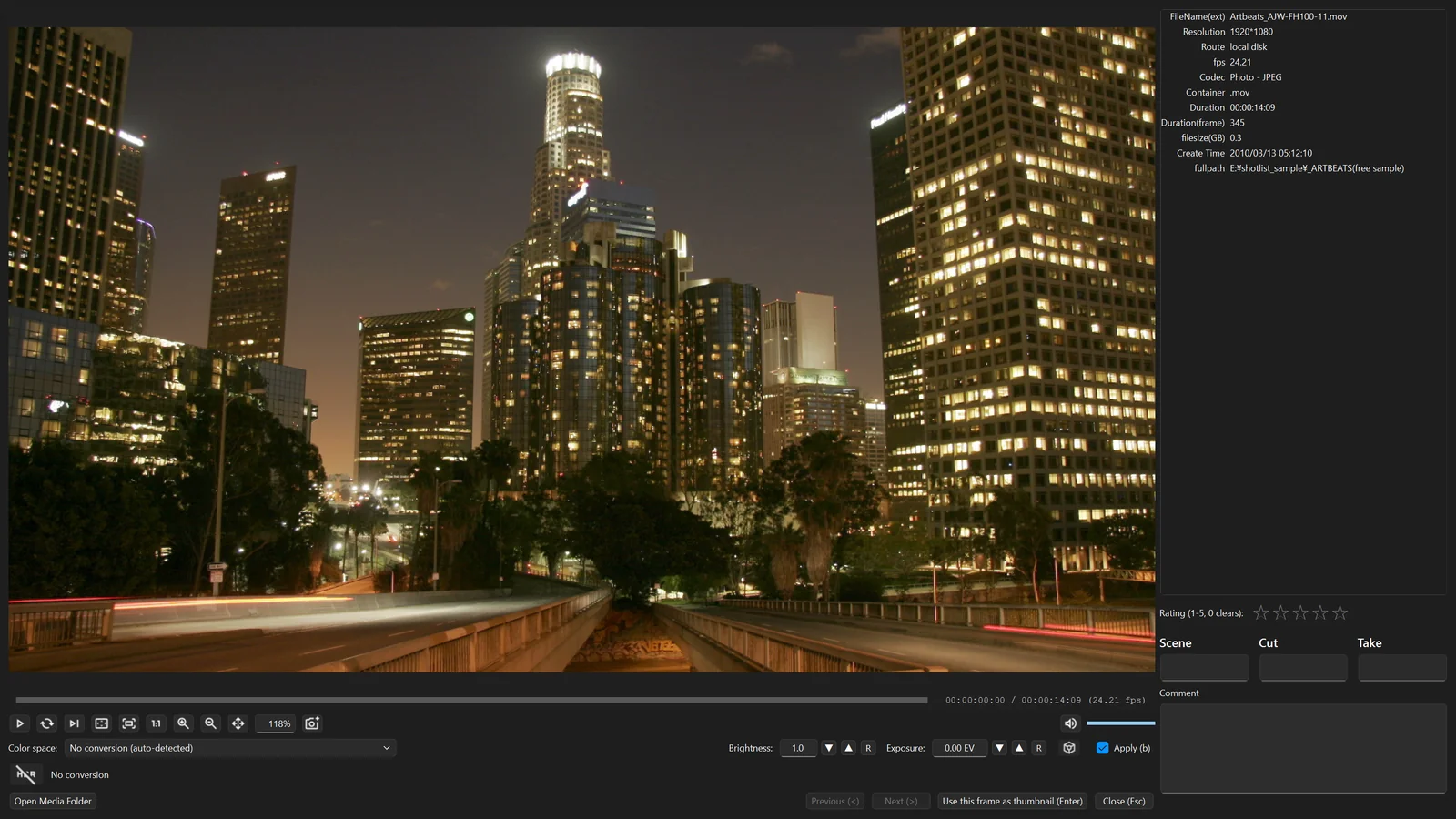
Review player

Review player showing a night city clip, with metadata, stars and comment on the right
  • Real-time playback with audioPlays in real time with audio. Camera RAW and image sequences play straight from the list, too.
  • Camera metadata at a glanceCamera, lens, color space and other metadata are listed on the right. In full screen, press i to overlay them on the picture.
  • Stars and comments on the spotAdd stars with 1–5 and type comments while you watch. They show up in the list and the Review BOX right away.
  • Use this frame as thumbnailPress Enter on the frame you want, and it replaces the list's middle (Center) thumbnail — and the picture in the Excel export.
  • Locate jogJust drag left and right on the picture to move quickly through the clip. No controls get in the way of the picture until you need them.
  • Previous / next clip, loop, sequential playback< > move to the previous or next clip. Press L to toggle loop playback and N to toggle sequential playback mode (play on into the next clip).
  • Zoom, pan and full screenZoom with the wheel and pan by dragging while holding Space. H shows 1:1 and F toggles full screen.
  • The same display tools as ShotPlayerToggle the color space view (D), adjust brightness and exposure, and use ACES and HDR display (Shift+D) — the same display tools as ShotPlayer.
Keyboard shortcuts
ActionKey (Windows and Mac)
Play / pauseSpace
Back / forward 1 frame← / →
Back / forward 10 secondsShift+← / Shift+→
Previous / next clip< / >
Add / clear stars1–5 / 0
Use the current frame as thumbnailEnter
Loop / sequential playback mode on or offL / N
Full screen / 1:1F / H
Color space view / HDR ⇄ SDR lookD / Shift+D
List ⇄ Review BOXTab

FLEXIBLE FILTERING Filter

Find the shots you need among hundreds of clips — fast.
Stack as many conditions as you like on any metadata: fps, codec, camera, reel, timecode and more.

Stack conditions

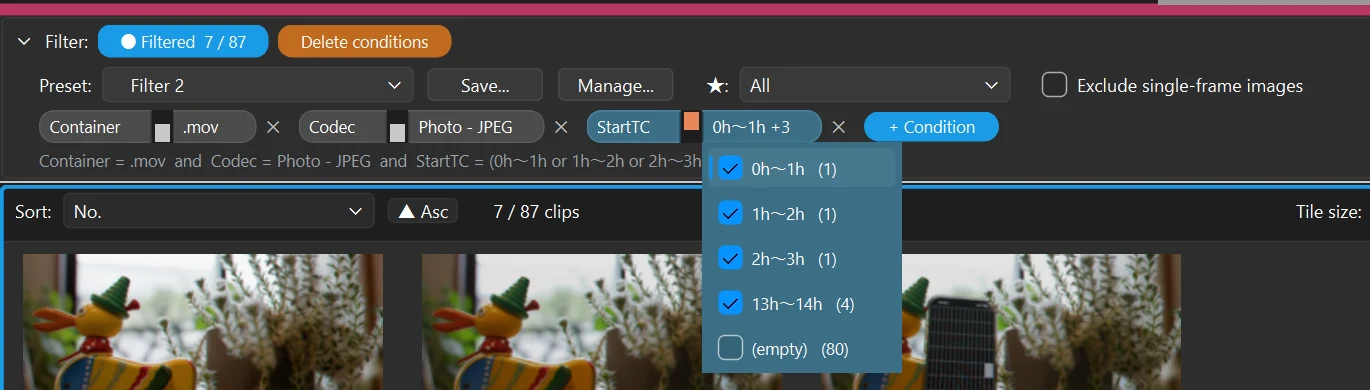
Each "+ Condition" adds another row of filtering. Conditions combine with "and", and the line below shows the current expression. The filter applies to the list and the Review BOX at the same time, and a blue frame surrounds the view while it is active.

The filter bar with three stacked conditions: Container, Codec and StartTC

Multiple filter values in one condition

Within one condition, tick as many values as you like ("or"). The number next to each value is how many clips have it, and empty cells can be picked as a value too. Duration is grouped into 6 ranges and StartTC into 24 one-hour ranges.

The StartTC value list with four time ranges ticked, narrowing the list to 7 of 87 clips

Suspend without deleting

Click "Filtered" to suspend filtering while keeping the conditions; click again to bring it back. The orange switch in the middle of each condition turns that one on or off.

Filtering suspended: the conditions stay, and all 87 clips are shown
The Codec condition switched on (orange switch)
ON (orange = applied)
The Codec condition switched off (white switch)
OFF (white = suspended)
  • Combine with starsUse the star rating (5 stars, 4 and up… or unrated only) as the first condition to keep only the shots picked in review.
  • Exclude single-frame imagesDrop stills and one-frame sequences with a single checkbox.
  • Save as presetsName and save your conditions to both, this project only or this computer only. Project presets travel with the .shotlist file.
  • Filter state saved with the projectThe current filter is saved with the project, so you pick up exactly where you left off.
  • Choose what to exportWhen exporting Excel or images while filtered, choose between the filtered results and all clips.
ShotPlayer icon

MULTI-FUNCTION PLAYER ShotPlayer

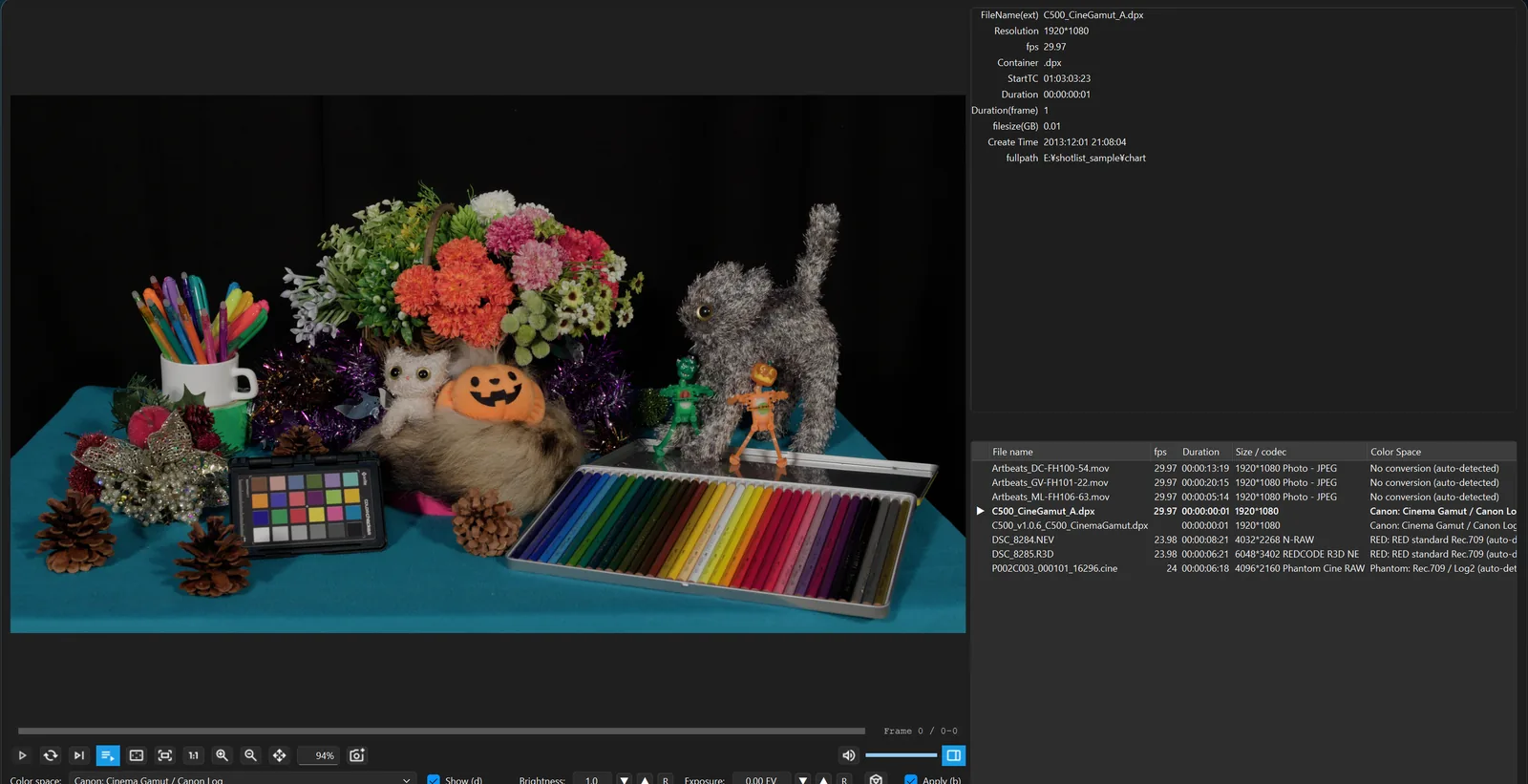
An HDR / ACES / RAW-ready player included with ShotList2.
Pro features such as full screen, SDR / HDR switching, ACES ODT on / off and accurate exposure adjustment.

ShotPlayer playing a Canon Log DPX in ACES
  • HDR displayOn Windows displays in HDR mode and Mac HDR (XDR / EDR) displays, play back through the ACES 2.0 HDR (1000 nits) output transform. Press Shift+D to compare the HDR and SDR looks. Even without HDR metadata in the file, just set the right color space to see HDR on a supported monitor right away. Check the dynamic range of RAW and Log footage, and use exposure to explore its latitude.
  • Windows and MacProfessional footage (high-bitrate ProRes, RAW and image sequences) is now easy to view on Windows, too! ShotPlayer packs in everything we wanted from a video player, especially on Windows. It was born from our belief that if you need a tool, you build it yourself.
  • Open with a double-clickAssociate video file extensions with ShotPlayer in your OS and a double-click plays them. Beyond MP4 and MOV, it also plays RAW files and image sequences.
  • Camera metadata at a glancePress Tab to open the side pane and check camera, lens, color space and other metadata in a moment.
  • Playlist featuresPlay clips quickly with continuous play, loop and the arrow keys (↑↓). Packed with on-set essentials, such as automatically adding every clip in a folder to the playlist.
  • Zoom, pan and view sizeZoom and pan freely, even during playback. Switch between full screen, Fit and 1:1 pixels with shortcut keys.
  • Review tools for VFXSupports both ACES 1.3 and 2.0. Toggle the ACES ODT, apply accurate scene-linear exposure, and switch RGC (Reference Gamut Compression) on or off. Set the color space by hand to check an accurate ACES look even on footage without metadata.
  • Round-trip with ShotListBuild a ShotList list from the playlist, or open a ShotList list (or filtered results) in ShotPlayer. Color space, anamorphic and rotation settings carry over.
Keyboard shortcuts
ActionWindowsMac
Actual size (1:1)Ctrl+1⌘1
One step larger / smallerCtrl+= / Ctrl+-⌘= / ⌘-
Fill the screen (with controls)Ctrl+0⌘0
New window (to compare)Ctrl+N⌘N
HDR ⇄ SDR lookShift+D⇧D
Toggle side paneTabTab
Playlist up/down / brightness↑↓ / Shift+↑↓↑↓ / ⇧↑↓

OUR STORY shotlist "story"

Cherish your time.

shotlist was born as an in-house tool at L'espace Vision to prepare the shot lists every commercial, film, drama and CG production needs. Before it, someone had to export thumbnails from each clip one by one and paste them into Excel by hand.

ShotList2 rebuilds that tool for today's sets — camera RAW, color management and review included. Leave the busywork behind and get back to the work itself :D

L'espace Vision

WHAT SHOTLIST2 DOES Features

Three thumbnails

Head, middle and tail thumbnails plus metadata on one row. Image sequences become one clip.

Camera RAW support

Plays R3D, ARRIRAW, BRAW, ProRes RAW and more directly through each vendor's SDK.

RAW development settings

Set Rec.709, Log or other development settings per RAW file. Use the Setup Wizard to unify color management on Rec.709 or ACES.

ACES display

ACES 1.3 / 2.0 output transforms, with camera Log detected from metadata. RGC (Reference Gamut Compression) can be turned on or off.

Rotation

Clips shot in portrait and the like are turned the right way up from metadata. Set 0 / 90 / 180 / 270° by right-click; thumbnails, preview and xlsx images follow.

Anamorphic

Anamorphic footage is desqueezed to the correct aspect ratio — automatically from metadata, or set 1.0–2.0x by right-click.

Review player

Real-time playback with audio, full screen, loop, locate jog, zoom and pan.

Review BOX

Tile view with star ratings and comments. Scrub frames by hovering.

Cut detection

Splits a single movie into one row per cut using ML (TransNetV2).

Flexible multi-level filters

Stack as many conditions as you like (fps, codec, camera, reel, TC and more). Save the filter state as a preset.

Projects

Save and resume with .shotlist files, and relink moved media. Projects use the same format on Windows and Mac.

ShotPlayer

An HDR / ACES / RAW-ready player included with ShotList2, with pro features such as full screen, SDR / HDR switching, ACES ODT on / off and accurate exposure adjustment.

OS thumbnails

RAW thumbnails in Windows 11 File Explorer and in Finder / Quick Look on Apple silicon Macs.

EXR checks

Detects extra channels beyond RGB, data windows (overscan), mixed channel types (half and float), multi-part files and pixel errors such as NaN and Inf as soon as the files are imported.

Copy media

Right-click "Copy files to clipboard" and paste straight into File Explorer / Finder. Also includes "Copy full paths (for FastCopy, RapidCopy, etc.)".

Checksums

Three algorithms as columns: XXH3-64 (fastest), XXH64BE (ASC MHL compatible) and MD5. Image export too.

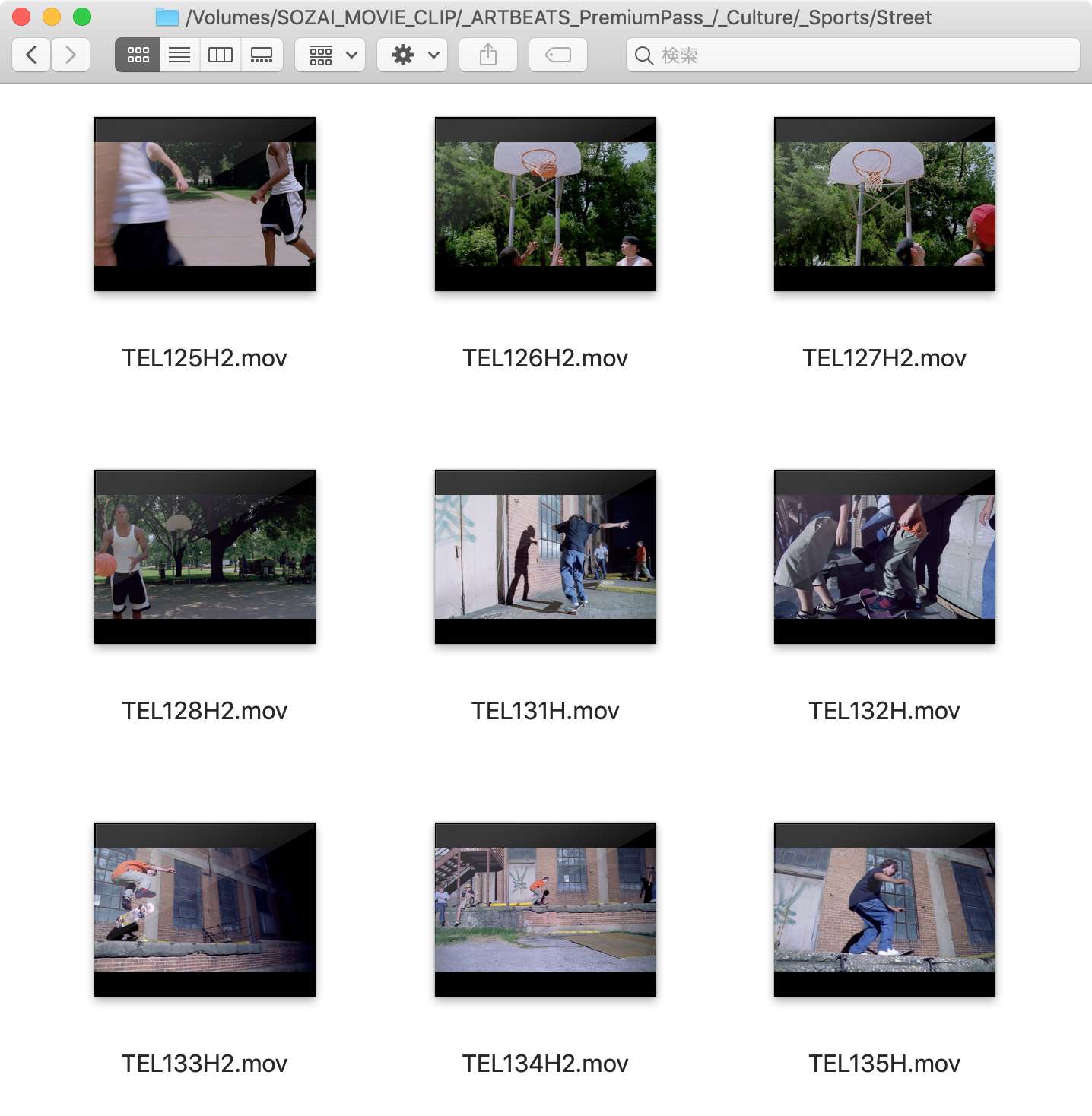
CONNECT YOUR SHOT LIST TO POST-PRODUCTION TOOLS Production add-on

Move clips directly between your shot list and DaVinci Resolve, After Effects and Nuke / NukeStudio / Hiero — and debayer Sony X-OCN on Mac.
An add-on subscription that connects your post-production pipeline straight from ShotList2.

  • First 14 days free
  • Windows and Mac
  • Standard and group

DaVinci Resolve

Connects directly to the media pool and timelines of a running Resolve.

  • Send clips to the selected bin or a new bin
  • Build a shot list from the media pool, bins or timelines
  • Timelines import one row per edit range, with speed

Requires DaVinci Resolve Studio

After Effects

Go back and forth with the Project panel and compositions.

  • Send clips to the selected folder or a new folder
  • Build and send a composition in ShotList order or by Record TC
  • Build a shot list from projects and composition layers

Nuke / NukeStudio / Hiero

Go back and forth between your shot list and Nuke nodes, bins and timelines.

  • Copy selected rows as Read nodes and paste them into the node graph
  • Paste into a NukeStudio / Hiero bin to import the clips
  • Build a shot list from .nk scripts and timelines (.otio / XML)

Sony X-OCN (Mac)

Debayers Sony's RAW through macOS media extensions.

  • Thumbnails, preview and playback for VENICE / BURANO / F65 / F55 / F5
  • Finder / Quick Look thumbnails
  • Press d to switch to the ACES view

Requires macOS 15 or later and free media extensions

Production add-on details & pricing

SUPPORTED MOVIE FILES Movie media

QuickTime (.mov)

  • ProRes proxy / LT / SQ / HQ / 4444 / 4444 XQ
  • H.264 / HEVC / Photo JPEG and more

MXF (.mxf)

  • XAVC / MPEG2 / DNxHD
  • ARRIRAW / ARRICORE (MXF)

mp4 / avi / APV

  • H.264 / HEVC / AV1 and more
  • Anything FFmpeg can read

SUPPORTED CAMERA RAW Camera RAW

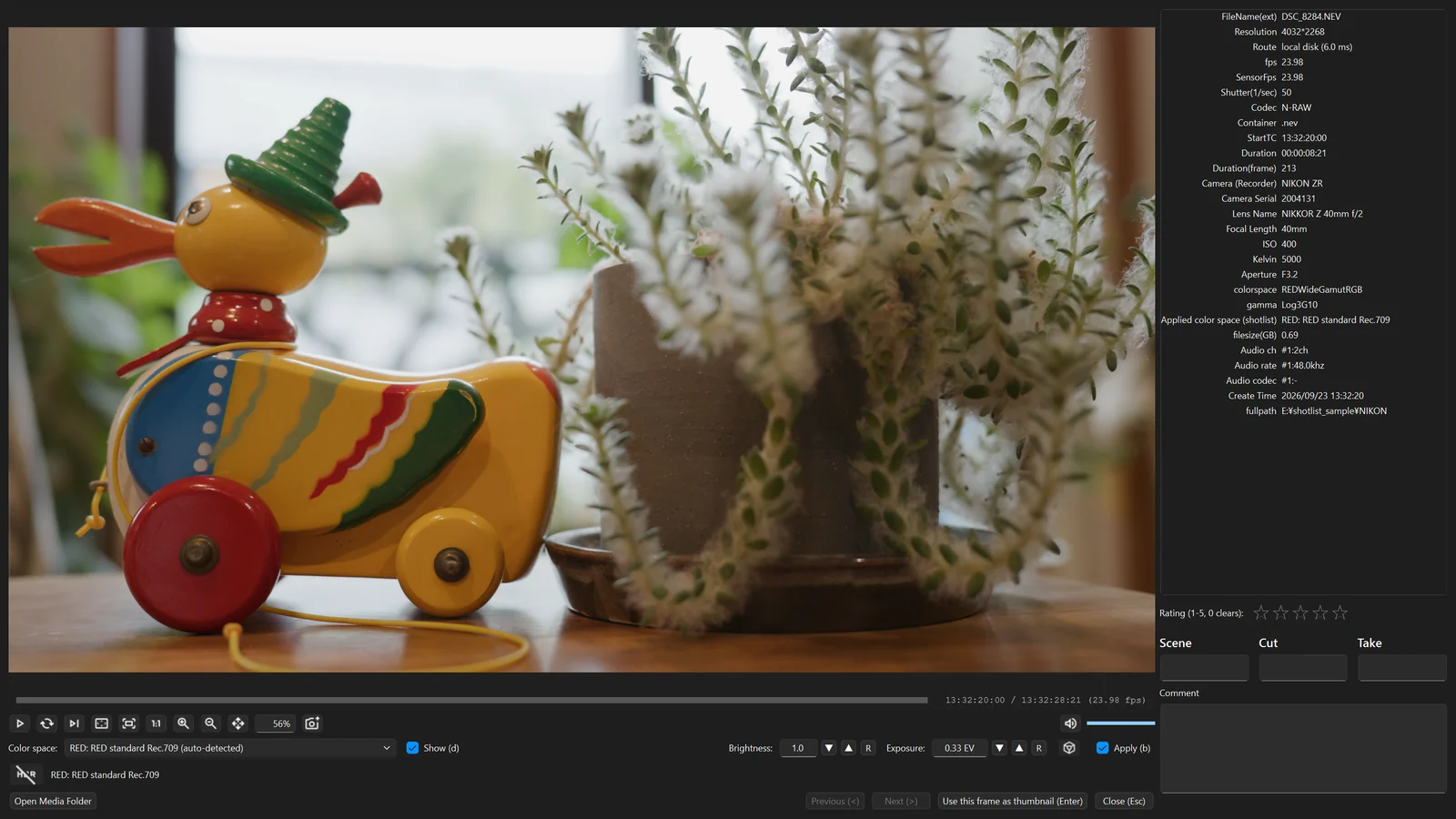
Review player showing a NIKON ZR N-RAW clip in RED standard Rec.709 (exposure +0.33 EV)
Camera RAW read directly through the SDK, shown with its camera metadata (NIKON ZR, N-RAW)

RED R3D

  • KOMODO / V-RAPTOR / MONSTRO / WEAPON
  • Nikon ZR (N-RAW)
  • GPU debayer

ARRI

  • ARRIRAW (.ari / .mxf)
  • ARRICORE / HDE

Blackmagic RAW

  • .braw

ProRes RAW

  • On Windows, requires Apple's
    "ProRes RAW for Windows"

Phantom Cine

  • .cine

Sony X-OCN

  • Mac: thumbnails, preview, playback
  • * Requires the Production add-on and a free extension
  • Windows: metadata only

SUPPORTED STILL IMAGES Picture
Image sequence

Numbered files in a folder are recognized as a single clip.

DPX

  • DPX v1.0 / v2.0

OpenEXR

  • Overscan (display window)
  • Check columns for problems

Other images

  • DNG / CinemaDNG
  • TIFF / JPEG / PNG / TGA / PSD

SUPPORTED METADATA column media info

Pick and combine the metadata columns you need.

Number / file name

  • CUT No.
  • FileName

Thumbnails

  • Head / middle / tail

Shooting info

  • Scene / Cut / Take / Comment
  • Star rating

File format

  • Container / Codec
  • PixSize / file size

Video

  • Reel / fps / Length
  • Start TC

Camera & lens

  • Camera / Lens / ISO
  • Shutter / WB / Gamma / Gamut

Image

  • bit depth / alpha
  • colorspace / gamma

Audio

  • channels / rate
  • codec / bitrate

File info

  • Created / modified
  • Full path / relative path / checksum

Column order and visibility are customizable.

DOWNLOAD & REQUIREMENTS Download

Try it free for 14 days with a trial key (the Production add-on has its own 14-day free period after you buy a license).

storefront

Windows (Microsoft Store)

Starts with a free trial key.

Coming soon
laptop_mac

Mac

Starts with a free trial key.

Coming soon

Coming soon

System requirements

WindowsWindows 10 / 11 (64-bit, x64)
Windows on ARM is not supported. About 800MB of disk space.
MacmacOS 15 or later, Apple silicon (M1 or later) only
About 380MB of disk space.
GPUNot required. With a GPU, playback display and color transforms (ACES / HDR) and RED (OpenCL) and ARRI (CUDA on Windows / Metal on Mac) debayering run faster
InternetOnly for license activation

PRICING Pricing

Every ShotList2 plan is a subscription — always the latest version

Standard (single-user license) — 1 user, up to 3 computers. Every subscription plan includes all features.

TrialNo card required
Free trial (one time only)
Try it first!

$0/ 14 days
Just enter your email address to try it
You will never be charged automatically
Coming soon
1 month-
Subscription (auto-renews)
For the months you are shooting

$10.99/ month
Renews automatically every month
Cancel anytime
Coming soon
3 months-
Subscription (auto-renews)
For a longer project

$27.99/ 3 months
Renews automatically every 3 months
About $9.33 per month
Coming soon
1 yearRecommended
Subscription (auto-renews)
Best value

$89.99/ year
Renews automatically every year
About $7.50 per month
Coming soon

Subscriptions renew automatically at the end of each period, and the price for the next period is charged on the renewal date. You can cancel and manage your license anytime in the Polar customer portal ("Manage Your License"); after you cancel, you will not be charged from the next renewal date. Prices are shown in US dollars. The final amount, including any taxes for your country or region, is shown on the Polar checkout page. Payment is processed by Polar Software, Inc., our online reseller and merchant of record.

Production add-on

Nuke / DaVinci Resolve / After Effects integration and X-OCN on Mac. Same price as the app, with a 14-day free period. Purchase after activating your app license.

Production add-on details & pricing

Group edition (multi-user license · for teams)

Licensed per computer and shared by any number of users. The add-on is the same price.

10 computersMulti-user license
Subscription (1 year, auto-renews)
10 computers shared by any number of users

¥90,000/ year
Renews automatically every year
Coming soon
30 computersMulti-user license
Subscription (1 year, auto-renews)
30 computers shared by any number of users

¥240,000/ year
Renews automatically every year
Coming soon
50 computersMulti-user license
Subscription (1 year, auto-renews)
50 computers shared by any number of users

¥350,000/ year
Renews automatically every year
Coming soon

Payments are handled by Polar. Manage your purchase from the customer portal (coming soon).

FREQUENTLY ASKED QUESTIONS FAQ

License activation requires an internet connection.

Please be sure to check that it works with the trial version first. About the trial

Are any features limited in the trial?

Everything except the Production add-on works for 14 days. The add-on has its own 14-day free period after you activate a paid license.

How many computers can I use?

The standard license is for one user on up to 3 computers. To share computers among several users, choose the group edition.

Does it work offline?

The internet is used only for license activation. Importing and exporting work offline.

How do I read ProRes RAW on Windows?

Install Apple's "ProRes RAW for Windows". It cannot be bundled with ShotList2.

Does the Resolve integration work with the free DaVinci Resolve?

No. It requires DaVinci Resolve Studio.

Can it read Sony X-OCN?

Only on Mac with the Production add-on: thumbnails, preview and playback (the free nablet X-OCN Media Extension and Apple Pro Video Formats are also required). On Windows, or on Mac without the add-on, metadata only.

Read the full FAQ

CONTACT Contact

Questions or requests? Send us an email.

Email us