
A SIMPLE, MULTI-FUNCTION PLAYER ShotPlayer
The standalone player included with ShotList2.
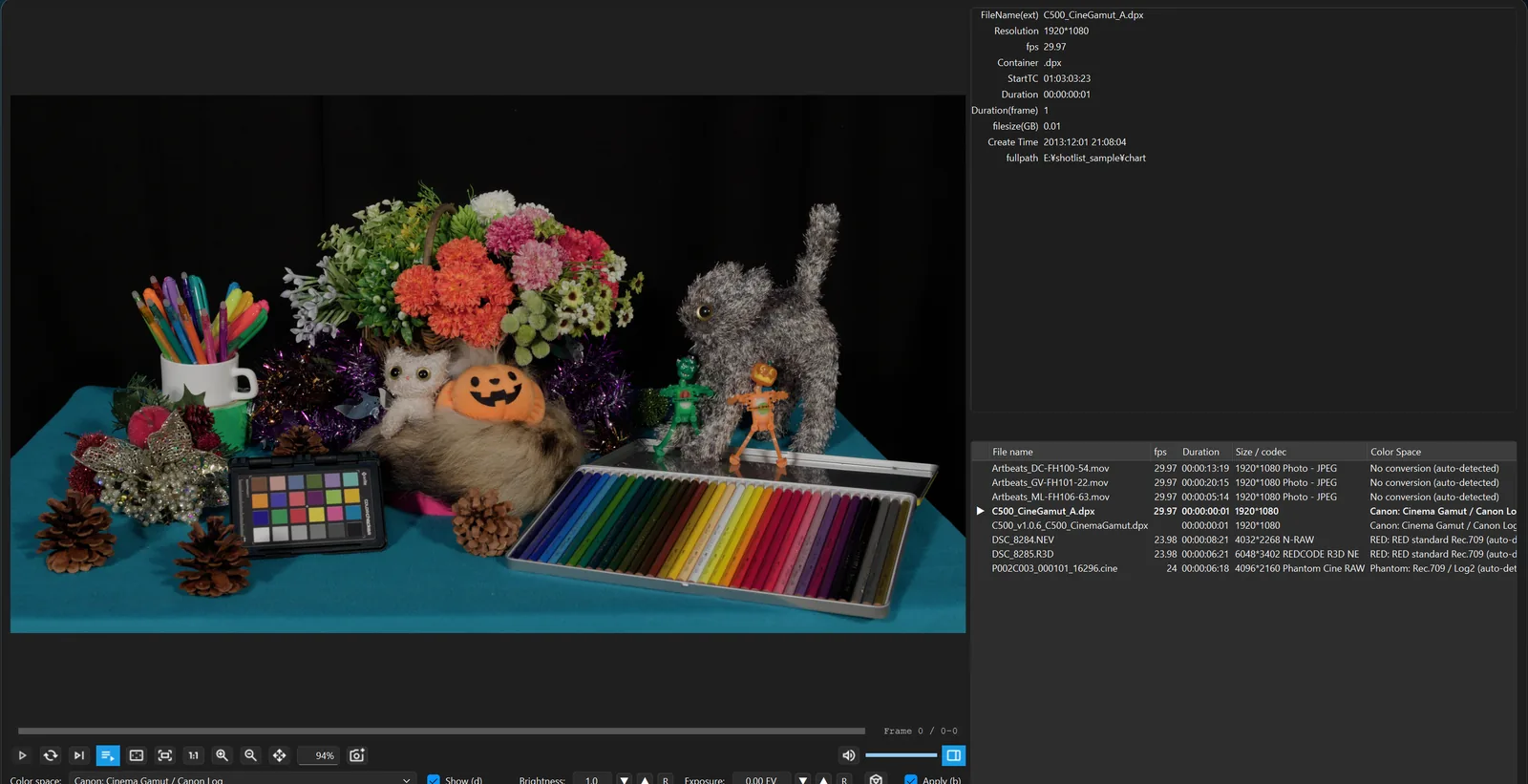
Double-click a clip to play it right away — camera RAW and image sequences included, in HDR / ACES color.
SIMPLE TO USE Simple
Open with a double-click
Right-click a video → "Open with" → ShotPlayer. Associate the file extensions and a double-click plays them. Drag and drop works too.
The whole folder, automatically
Choose "Add every file in the same folder to the playlist" in "Settings" at the bottom left, and opening one file adds every clip in its folder to the playlist and moves to the file you opened. Duplicate clips are not added.
Sequences as one clip
Open one frame of a DPX, EXR, DNG or ARI sequence and the whole sequence opens as one clip. Play and step through it just like a video.
Playlist and RAPID PLAY
Open several clips and they gather in one window's playlist. With RAPID PLAY on, just select with ↑ ↓ and playback switches clip after clip. The playlist can loop, too.
Fit the window to the clip
Fit the window to the opened clip (1:1 / 1/2 / 1/4 / 1/8). Ctrl+1 for actual size, Ctrl+= / Ctrl+- to step larger or smaller.
More windows to compare
"New window" in "MENU" (Ctrl+N) opens another ShotPlayer at the same size to set side by side. "New window (keep the playlist)" (Ctrl+Shift+N) carries the current playlist over in the same order, color space settings included. On Mac, use ⌘ instead of Ctrl.
PRO FOOTAGE IN ITS TRUE COLOR Display
- HDR displayOn Windows displays in HDR mode and Mac HDR (XDR / EDR) displays, play back through the ACES 2.0 HDR (1000 nits) output transform. Press Shift+D to compare the HDR and SDR looks. Even without HDR metadata in the file, just set the right color space to see HDR on a supported monitor right away. Check the dynamic range of RAW and Log footage, and use exposure to explore its latitude.
- Review tools for VFXSupports both ACES 1.3 and 2.0. Toggle the ACES ODT, apply accurate scene-linear exposure, and switch RGC (Reference Gamut Compression) on or off. Set the color space by hand to check an accurate ACES look even on footage without metadata.
- Camera RAW and image sequencesPlays R3D, ARRIRAW, BRAW, ProRes RAW and other camera RAW through each maker's SDK, and DPX, EXR and other image sequences as single clips. MP4 and MOV, of course (supported formats).
- Camera metadata at a glancePress Tab to open the side pane and check camera, lens, color space and other metadata in a moment.
- Zoom, pan and view sizeZoom (wheel / + -) and pan (right or middle drag) freely, even during playback. Switch between full screen, Fit and 1:1 pixels with shortcut keys.
- Save or copy the current frameThe camera button saves the frame on screen as a full-resolution PNG or JPG, in the colors you see. Drag to crop a region. Pressed during playback, it pauses and saves that frame. Ctrl+C (⌘C on Mac) copies the current frame straight to the clipboard.
- Windows and MacProfessional footage (high-bitrate ProRes, RAW and image sequences) is now easy to view on Windows, too! ShotPlayer packs in everything we wanted from a video player, especially on Windows. It was born from our belief that if you need a tool, you build it yourself.
ROUND-TRIP WITH SHOTLIST With ShotList
- Open from ShotListFrom ShotList2's File menu: "Open the whole list in ShotPlayer" or "Open the filtered results in ShotPlayer". Clips are passed in the order shown in ShotList.
- Create a ShotList from the playlist"Create a ShotList" makes a ShotList list from the clips in the playlist. Color space, desqueeze and rotation settings carry over. The playlist can be brought into ShotList and saved.
KEYBOARD SHORTCUTS Shortcuts
| Action | Windows | Mac |
|---|---|---|
| Play / stop | Space | Space |
| Back / forward one frame | ← / → | ← / → |
| Back / forward 10 seconds (10 frames for sequences) | Shift+← / Shift+→ | ⇧← / ⇧→ |
| Previous / next clip | Ctrl+← / Ctrl+→ / < / > / PageUp / PageDown | ⌘← / ⌘→ / < / > / PageUp / PageDown |
| Mute | M | M |
| Loop | L | L |
| Auto-advance to the next clip | N | N |
| Action | Windows | Mac |
|---|---|---|
| Show / hide the playlist | P | P |
| Previous / next in the playlist (switches and plays when RAPID PLAY is on) | ↑ / ↓ | ↑ / ↓ |
| Switch to the selected row (in the playlist) | Space | Space |
| Remove the selected rows from the playlist (files are kept; in the playlist) | Delete / Backspace | delete |
| Loop the playlist (in the playlist) | L | L |
| Hide the playlist (in the playlist) | Esc | Esc |
| Action | Windows | Mac |
|---|---|---|
| Full screen (fit to window while zoomed in) | F | F |
| Toggle full screen | Double-click | Double-click |
| 1:1 (actual pixels) | H | H |
| Zoom in / out one step | + / - | + / - |
| Zoom in / out (around the cursor) | Wheel | Wheel |
| Fit to window | Right double-click | Right double-click |
| Pan while zoomed in | Right / middle drag / Space+drag | Right / middle drag / Space+drag |
| Copy the current frame to the clipboard as an image | Ctrl+C | ⌘C |
| Show metadata over the picture in full screen | I | I |
| Release pan → fit → leave full screen → close (one step at a time) | Esc | Esc |
| Show / hide the side pane | Tab | Tab |
| Action | Windows | Mac |
|---|---|---|
| Color space display on / off (compare with no transform) | D | D |
| HDR ⇄ SDR look | Shift+D | ⇧D |
| ACES Reference Gamut Compression (in ACES mode) | Alt+D | ⌥D |
| Bypass brightness and exposure | B | B |
| Brightness | Shift+↑ / Shift+↓ | ⇧↑ / ⇧↓ |
| Reset brightness | R | R |
| Exposure (1/3 EV steps) | Alt+↑ / Alt+↓ | ⌥↑ / ⌥↓ |
| Reset exposure | Alt+R | ⌥R |
| Action | Windows | Mac |
|---|---|---|
| New window (to compare) | Ctrl+N | ⌘N |
| New window with the same playlist | Ctrl+Shift+N | ⌘⇧N |
| Close the window | Ctrl+W | ⌘W |
| Window at actual size (1:1) | Ctrl+1 | ⌘1 |
| Window one step larger / smaller | Ctrl+= / Ctrl+- | ⌘= / ⌘- |
| Fill the screen (with controls) | Ctrl+0 | ⌘0 |
On the Mac, ⌘ is Command, ⌥ is Option and ⇧ is Shift. While a text field is active, keys go to the text field.
Manual: ShotPlayer ・ Review BOX and Review player ・ Color and HDR ・ Keyboard shortcuts