Manual › Basic license features
Review BOX and Review player
Review BOX
A view that lays out your clips as tiles so you can compare them by picture and rate them.
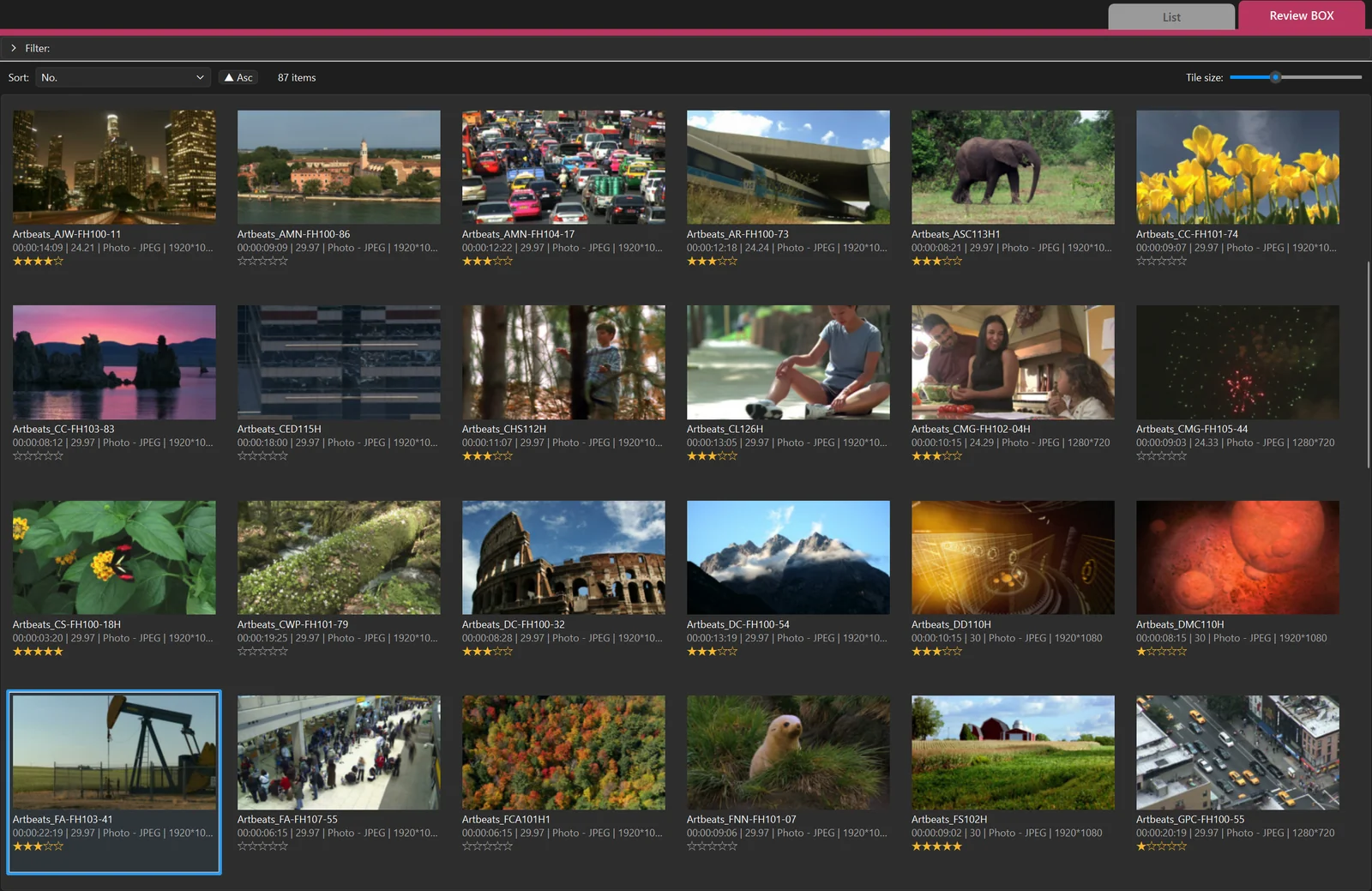
Open it
Click the "Review BOX" tab above the table (or press Tab or Ctrl+2). The row selected in the list stays selected.
Tiles
Each tile shows the thumbnail, file name, "duration | fps | codec | resolution", stars and the first line of the comment.
- Size: the "Tile size:" slider (120–480) or Ctrl+mouse wheel.
- Sort: choose a column with "Sort:" and "▲ Asc" / "▼ Desc" (separate from the list's sort).
- Select: click. Select several with Shift / Ctrl+click or by dragging.
Scrub frames by hovering
Move the mouse left and right over a tile's picture to see the frame at that position. You can check what is inside without opening it. When the mouse leaves, the original thumbnail returns (the thumbnail itself does not change).
Rate with stars
Select a tile and press 1–5. 0 clears it. It is the same value as the list's Rating column and is exported to the xlsx as "★★★☆☆".
Other keys
| Key | Action |
|---|---|
| Space / Enter / double-click | Open in the Review player |
| Ctrl+C | Copy the clips as files (paste into File Explorer / Finder to copy them) |
If you open with two or more tiles selected, you step through just those clips.
PRODUCTION Ctrl+Shift+C (copy for Nuke) and Ctrl+D / Ctrl+Shift+D (send to DaVinci Resolve) are Production add-on features.
Review player
Plays your clips at real speed with audio. Open it from a Review BOX tile or a list row.
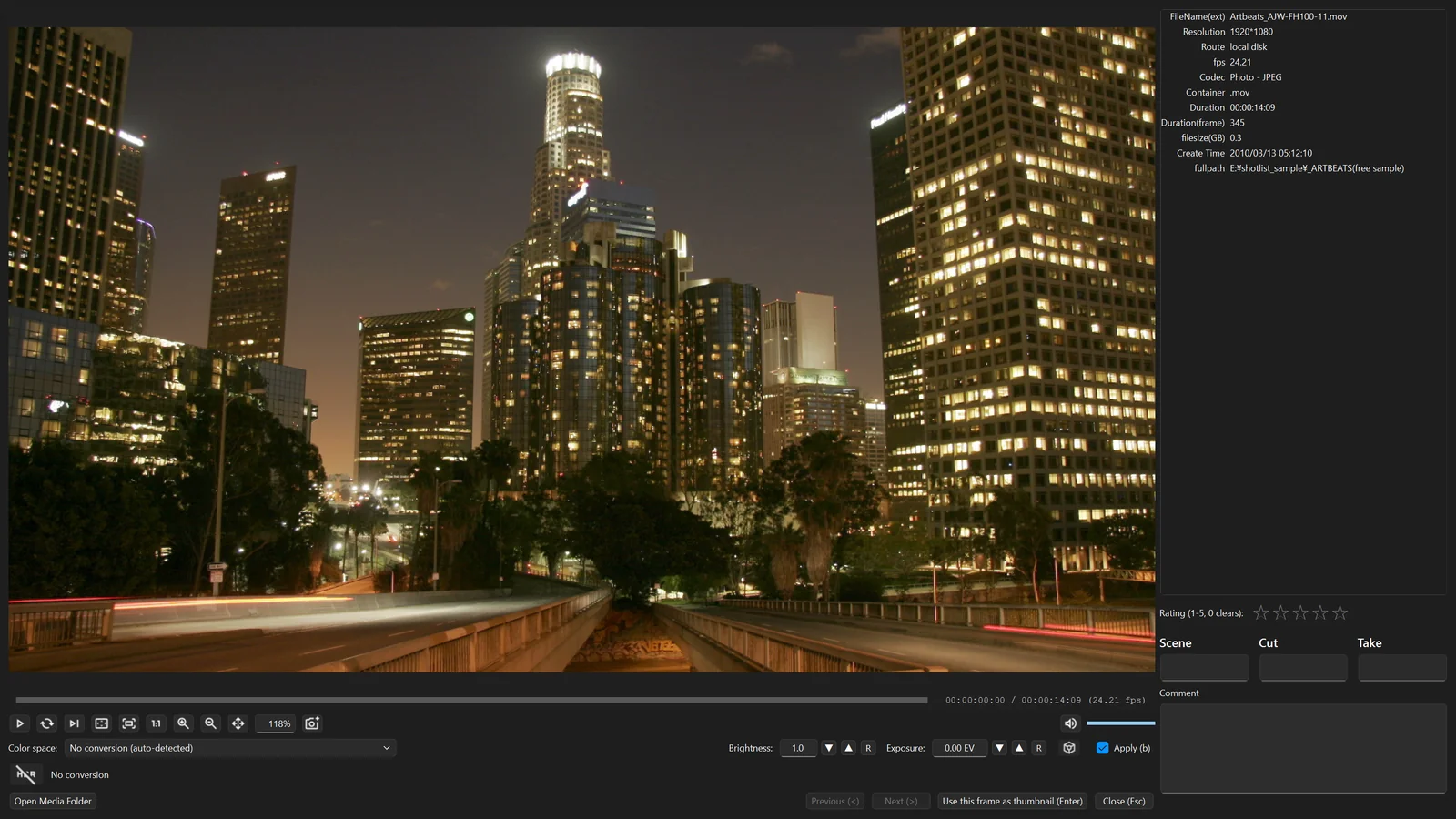
The screen
- Picture and TC: the clip's TC is shown under the picture.
- Controls: play / pause, loop, play the next clip when this one ends, full screen, fit to window, 1:1, zoom in / out, pan, zoom %, save this frame as an image, volume.
- Color row: "Color space:", "Show (d)", "Brightness:", "Exposure:", "Apply (b)" and the HDR button (Color and HDR).
- Right side: metadata, "Rating (1-5, 0 clears):", Scene / Cut / Take and Comment. What you enter also goes into the list.
- Bottom buttons: "Open Media Folder", "Previous (<)", "Next (>)", "Use this frame as thumbnail (Enter)", "Close (Esc)".
Playback
| Key | Action |
|---|---|
| Space | Play / pause |
| ← / → | Back / forward one frame |
| Shift+← / → | Back / forward 10 seconds (10 frames for sequences) |
| < / >, Ctrl+← / → | Previous / next clip |
| L | Loop |
| N | Play the next clip when this one ends (cannot be combined with loop) |
| M | Mute |
| Enter | Use the current frame as the thumbnail |
- Pressing previous / next while playing keeps playing on the new clip.
- Videos (MOV / MP4 / MXF / AVI) play with audio.
- Loop, play-next and mute are saved in the
.shotlistfile.
Locate (drag to move)
Drag the picture left or right to move through the clip. Dragging the full width of the picture covers the clip from start to end. If it was playing, it resumes when you let go.
Full screen
F, double-clicking the picture or the button shows only the picture on the whole screen. Esc returns. In full screen, I overlays the metadata on the right.
Zoom, pan and 1:1
| Action | What it does |
|---|---|
| Mouse wheel, + / - | Zoom in / out around the mouse position (up to 8×) |
| H | 1:1 (one screen pixel = one source pixel) |
| F, right double-click | Fit to window when zoomed in |
| Space+left drag, middle or right drag | Pan (move the view) |
| Zoom % field | Type a value and press Enter (100 = actual pixels) |
Zooming in during playback may look coarse; stopping reloads the frame at full resolution.
Save a frame as an image
The camera button saves the current frame as PNG / JPG. You can also save only part of it with the crop option. It is saved with the colors as displayed (not available while HDR display is on).