Manual › Basic license features
Export (Excel and images)
Export the list to xlsx (an Excel file) or to JPEG images with the buttons at the bottom right of the window. Export is a base license feature.
Export buttons
From the left, there are four buttons at the bottom right. They work only when the list has at least one row.
| Button | Use it for |
|---|---|
| "Export xlsx" | Excel mode. Images are placed inside the cells, so they move with the rows when you sort. Requires Excel 365 (2023 or later); older Excel shows #VALUE! instead of the images |
| "Export xlsx (compatible)" | Compatible mode. Images float over the cells. Works in older Excel and other spreadsheet apps and viewers; images do not move when you sort |
| "Export xlsx (Sheets)" | For Google Sheets. Upload it to Google Drive and open it in Google Sheets to get images inside the cells (below) |
| "Export Images" | Writes the thumbnails out as JPEG files (below) |
Steps
- Click the export button you want.
- If No. has duplicates, you are asked to choose "Yes, Renumber" (renumber from 1 before exporting) or "Export Without Renumbering".
- If a filter is active, choose "Export the whole list" or "Export the filtered rows".
- Choose where to save. It starts in the last export folder (or Documents).
- If the export is split into two or more files, you are asked to confirm the number of files.
- When done, "Show in Folder" opens the export location.
While exporting, the button you clicked turns into "Cancel". If you cancel, no partial file is left.
The default file name is <imported folder name>_[Excel].xlsx ([Excel-Compatible] for compatible mode, [Spreadsheet] for Sheets). Exporting only the filtered rows adds _[filtered] at the end.
What's in the xlsx
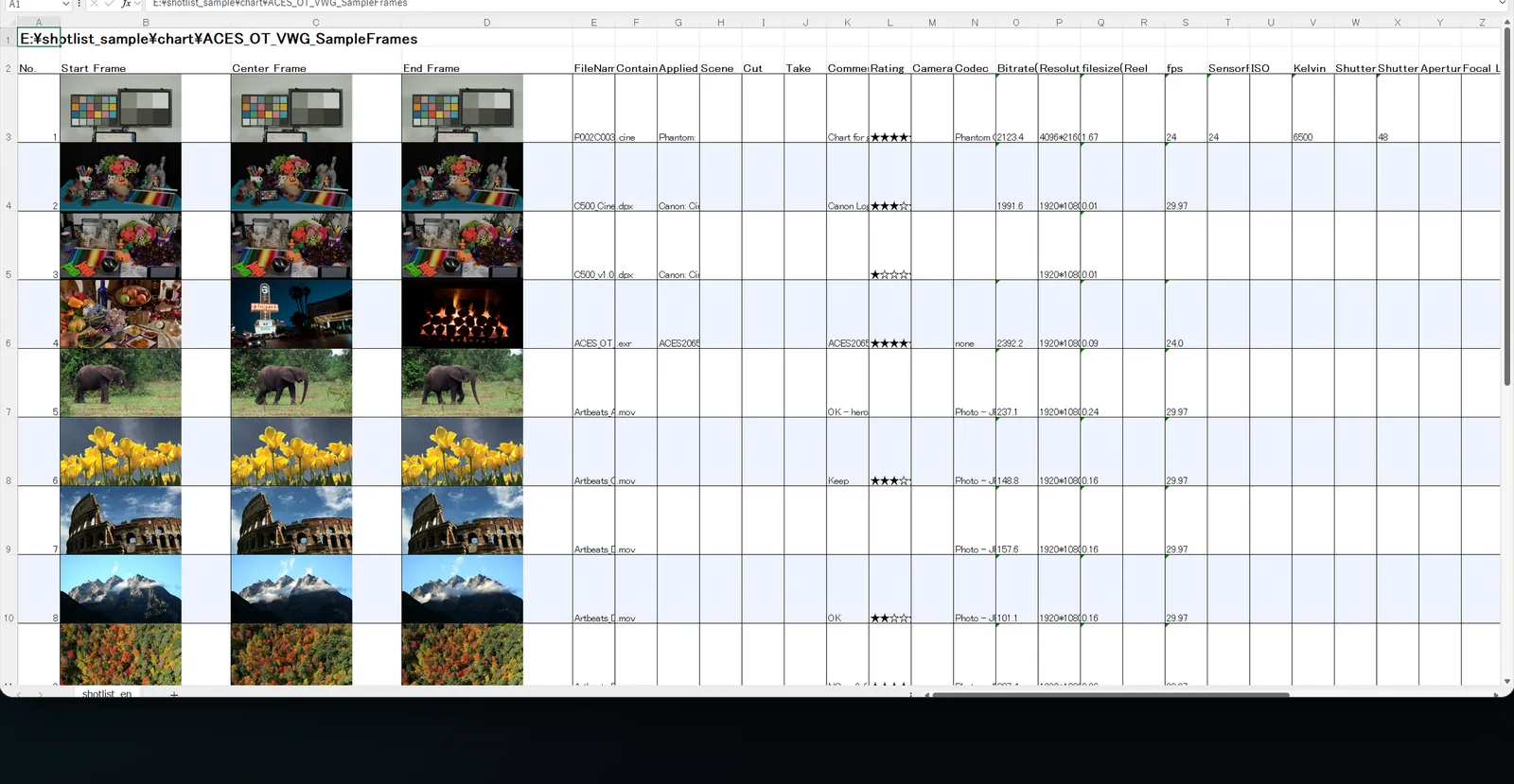
- Row 1 is the imported folder path, row 2 the column headers, and each clip has a row from row 3.
- Every other row is shaded.
- All rows have the same height, matching the tallest thumbnail.
- The columns are in the same order as the list in the app.
- The text size follows the "List font size:" setting.
Thumbnail size
Set it in Settings → "Thumbnails". The default is "Mode 2: width only".
- Images are 720px wide, laid out in 176 × 99 cells.
- They stay sharp when you zoom in Excel.
- Larger widths make the file heavier.
Splitting files
Large xlsx files can be too heavy to open in Excel for the web or Google Sheets. In Settings → "List Export", choose how to split for each of the three modes.
| "Split mode:" | Behavior |
|---|---|
| No split (single sheet) | Everything in one sheet of one file |
| Split into sheets | A new sheet every set number of rows |
| Split into workbooks (by row count) | A new file every set number of rows |
| Split into workbooks (by file size) | Splits so that no file exceeds the set size |
The default for all three modes is "Split into workbooks (by file size)" at 90MB, to stay under the 100MB limit for opening Excel and Google Sheets files in a web browser.
- Split files are named
<name>_<first row>_<last row>.xlsx(e.g._1_100). - If everything fits in one file, it keeps its original name.
- The number of files when splitting by size is an estimate, so there may be one more.
Eyecatch image (logo)
You can put an image such as your company logo at the top left of the xlsx.
- Choose the image with "Browse..." under Settings → "List Export" → "Eyecatch image".
- Click "Clear" to remove it.
The image is shrunk to 500px or less on its long side. When the export is split, it goes into every file.
Opening in Google Sheets
ShotList2 does not send the list to Google Sheets directly. Open it like this:
- Export the xlsx with "Export xlsx (Sheets)".
- Upload the xlsx to Google Drive.
- Open it in Google Sheets; the thumbnails become images inside the cells.
Only the eyecatch image stays as a floating image.
Exporting images
"Export Images" writes the thumbnails out as JPEG files into one folder.
- Click "Export Images".
- Choose a parent folder. A
shotlist_YYYY.MMDD.HHMMfolder is created inside it. - When done, the number of exported images is shown.
- Files are named
<No.>_<original file name>.jpg(e.g.001_A001C003.jpg). - The thumbnail columns shown in the list are exported. Start and End thumbnails get
_S/_Eat the end of the name. - Rows without images, such as audio-only files, are skipped.
Checksum columns
You can export hash values, used to check that media files are not corrupted, as columns. None are shown by default.
| Column | Method |
|---|---|
| checksum(XXH64BE) | xxHash64. Recommended (compatible with ASC MHL) |
| checksum(XXH3-64) | XXH3. The fastest |
| checksum(MD5) | MD5. Widely compatible but slow |
- Show a checksum column in Settings → "Columns". The "Cinema Camera - Thumbnail Center + XXH64BE" column preset also includes one.
- Checksums are calculated when importing. For an existing list, click "Refetch All but Thumbnails". It reads whole files, so it takes time.
For image sequences, only the first frame is calculated. R3D clips recorded as several files are not calculated.